Grid Drawing Tool
Put a grid over any photo so you can copy it square by square, then print a matching blank grid for your paper. Set the grid by rows and columns, by cell size in pixels, or in inches or cm. Pixel art mode turns the photo into blocks with a grid on top.
- 1Choose a photo
- 2Set the grid
- 3Download
1Choose a photo

or drop an image here, or paste one with Ctrl/Cmd+V
Your photo never leaves your device. The grid is drawn by your browser. We count anonymous page views (no cookies).
2Set the grid
What you get
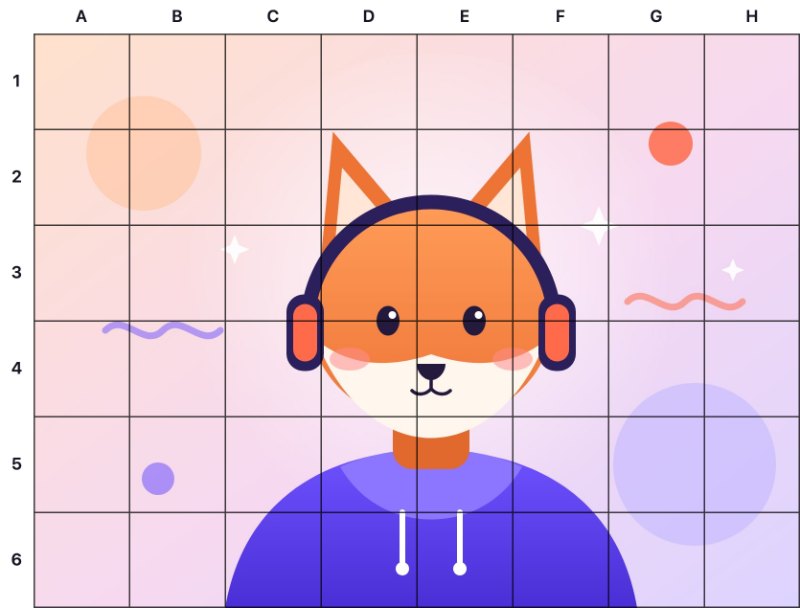
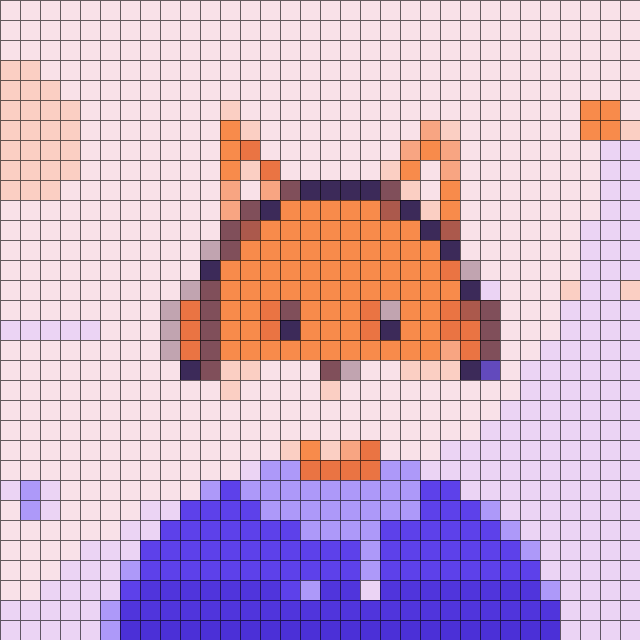
The example photo with an 8 × 6 drawing grid and labels, and as a 32 × 32 pixel art grid with 16 colours.

How to draw with a grid
- Choose your photo and pick how many squares you want. More squares means smaller boxes and more accurate copying, but more lines to draw.
- Draw the same number of rows and columns on your paper or canvas, in the same proportions. The easiest way is to download the matching blank grid and print it, or copy its measurements in light pencil.
- Copy one square at a time. Look at where lines and shapes cross the edges of each square on the photo and put them in the same place in the matching square on the paper.
- Rub out the pencil grid when the drawing is done.
To draw bigger than the photo, make the squares on the paper bigger. If the squares on your printed photo are 1 inch and the squares on your paper are 2 inches, the drawing comes out twice as big.
- Diagonal lines cross each square from corner to corner, so you can place details in the middle of a square more easily.
- Labels put letters on the columns and numbers on the rows (A1, B2…), the same on the photo and the blank grid, so you don't lose your place.
- Line colour: pick a colour that stands out on your photo, for example white lines on a dark photo.
Grid squares in inches or cm
Choose in / cm, type the square size you want, and the width you will print the photo at. The tool works out how many pixels each square is. For example, a photo printed 8 inches wide with 1 inch squares gets 8 columns. The DPI box shows how many of the photo's pixels go into each printed inch; if you print the downloaded PNG, it carries that DPI, so it comes out at the width you typed. To see how many pixels a print size needs, use Pixels to Inches.
Grid for pixel art
Pixel art mode shrinks the photo to a set number of blocks across, so every block is one flat colour, and draws a grid on the block edges. Colours cuts the number of colours, and the list under it shows each colour's hex code and how many blocks use it. A thicker line every 5 or 10 blocks makes counting easier when you copy it onto squared paper or into beads or stitches.
FAQ
How do I create a grid for drawing?
Choose a photo above, set the number of columns (or the square size in pixels, inches or cm) and download the photo with the grid. Then download the matching blank grid for your paper size. It has the same number of rows and columns in the same proportions, so each square on the paper lines up with a square on the photo.
What is the best free online grid drawing tool?
Look for one that lets you set the grid in real units, not only by the number of squares, and that gives you a blank grid that matches the photo, so the proportions on your paper stay right. This one does both, plus diagonals, labels and a pixel art mode. It is free with no sign-up and no watermark, and your photo stays on your device.
What is a good grid drawing tool for PC?
This page runs in any modern browser on Windows, Mac, Linux or a Chromebook, so there is nothing to install. Open it, choose a photo from your computer, and print the result or keep it open on a second screen while you draw.
Which is the best grid drawing app?
If you want to use your phone or tablet, you don't need an app for this: the page works in the phone's browser. Choose a photo from your camera roll, set the grid, and save the PNG to look at while you draw. It doesn't do camera tracing or augmented reality.
How do I get a grid on pixel art?
Choose Pixel art grid, set how many blocks across you want, and turn on Show the grid. The lines sit exactly on the block edges. You can also download the same picture without the grid.
What is the best grid size for pixel art?
It depends on how much detail you want. 16 × 16 and 32 × 32 are common for icons and small sprites; 64 × 64 keeps more detail from a photo but is more work to copy. Try a few sizes here and pick the one where the subject still reads clearly.
How do I turn a picture into a pixel grid?
Choose the photo, switch to Pixel art grid and set the blocks across. Each block becomes the average colour of that part of the photo. Lower the Colours setting for a flatter, more pixel-art look; the colour list shows every colour used and how many blocks have it.
Does this tool upload my photo?
No. The photo is read, gridded and saved by your browser on your own device. It is never sent to a server. You can check: open your browser's developer tools, go to the Network tab, and use the tool. No request carries your photo. The only request the page makes on its own is an anonymous page-view count with no cookies and no file data (see privacy).